Tire Audits help ensure your storage inventory is accurate by validating tire locations and identifying discrepancies between your physical inventory and the information recorded in TSS.
BEST PRACTICE: Perform your appointment cleanup after you have completed the audit (See Post Audit Cleanup, Step 3.)
When to Perform a Tire Audit
Before performing a Tire Audit, it's important to understand when audits should be conducted.
For best results, Tire Audits should be performed during the off-season when there are minimal active appointments and tires are not actively being moved through storage and retrieval workflows.
Performing audits during peak seasonal activity can create additional discrepancies and increase reconciliation effort.
Whenever possible, avoid actively storing or retrieving tires while an audit is in progress.
Enable Show Tire Set on the Mobile Pro App
Before beginning your audit, we recommend enabling the Show Tire Set setting in the menu User Preferences.
When enabled, scanning a tire will display the other tires associated with the same tire set.
This feature is especially useful during Tire Audits because it helps users verify that all tires in a set have been accounted for.
If a tire label is damaged, missing, or difficult to scan, this can help identify missing tires before completing the audit.
Scanning complete tire sets improves inventory accuracy and helps reduce post-audit cleanup activities.
NOTE: Your mobile device must be connected to a network to show the tire set.
Step 1: Scan the Storage Locations and Tires
| 1. Login to the TSS Mobile Pro app and tap the Tire Audit tile. | 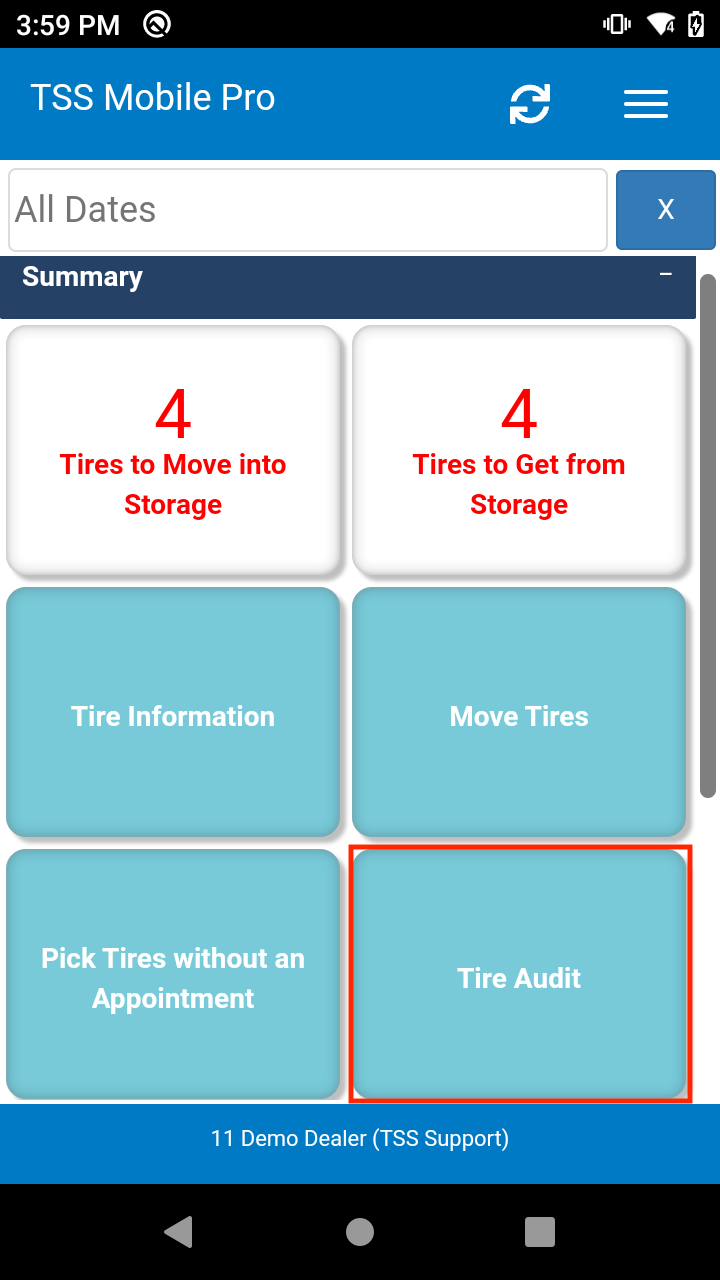 |
| 2. Scan the bin label or select the bin from the dropdown menu. | 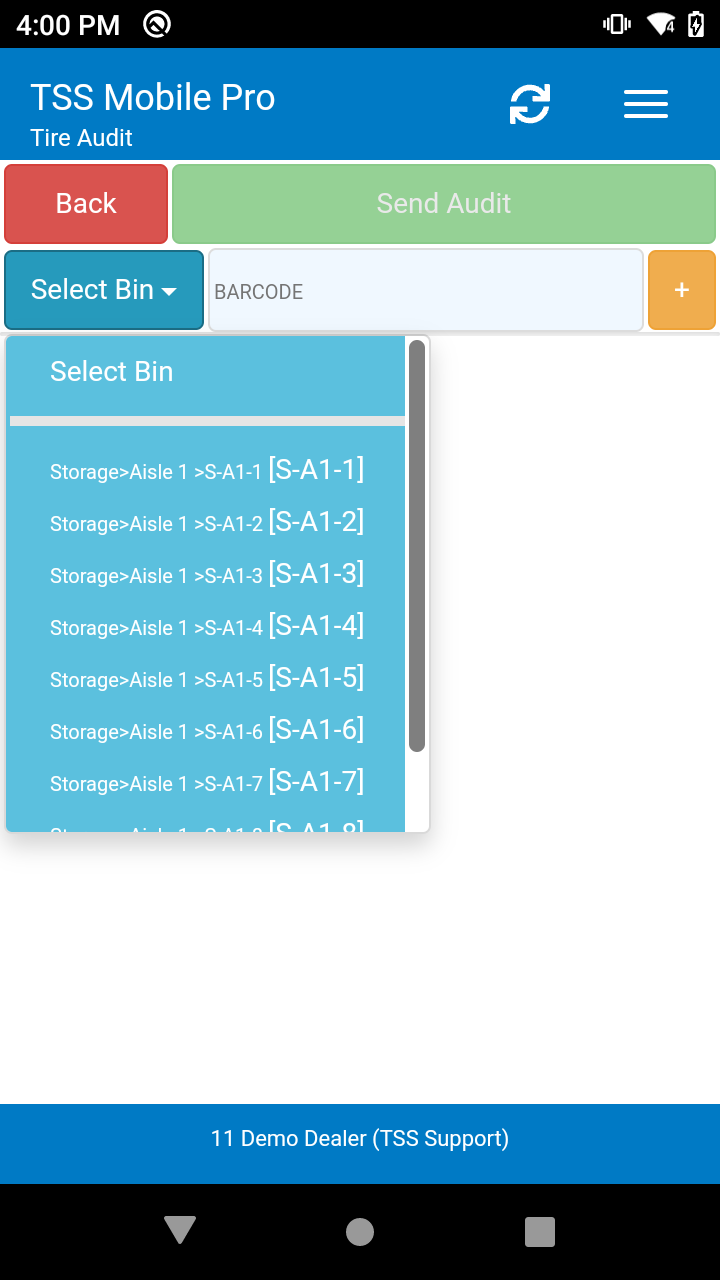 |
| 3. Scan the tires in the bin location that was scanned. BEST PRACTICE: If the incorrect bin was scanned, uncheck the tires, scan the correct bin location, then re-scan the tires. | 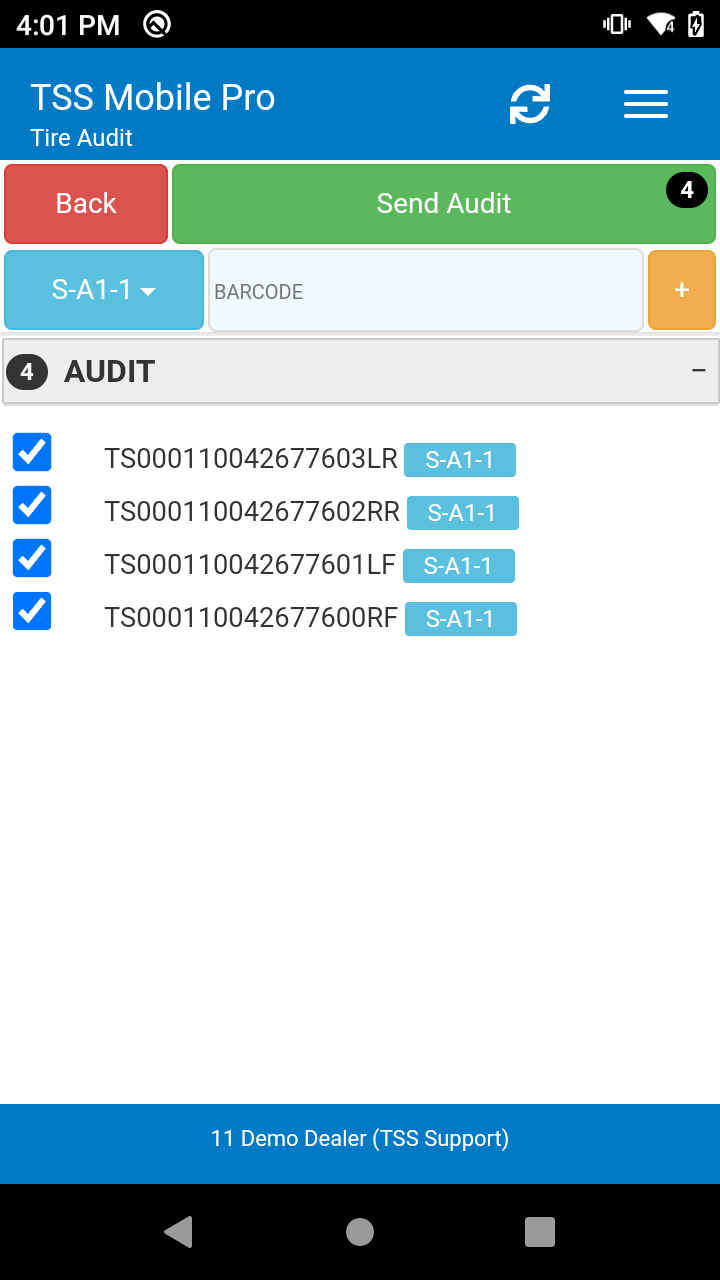 |
| 4. Scan the next bin and the tires in that bin. Repeat this process until all bin locations and tires have been scanned. | 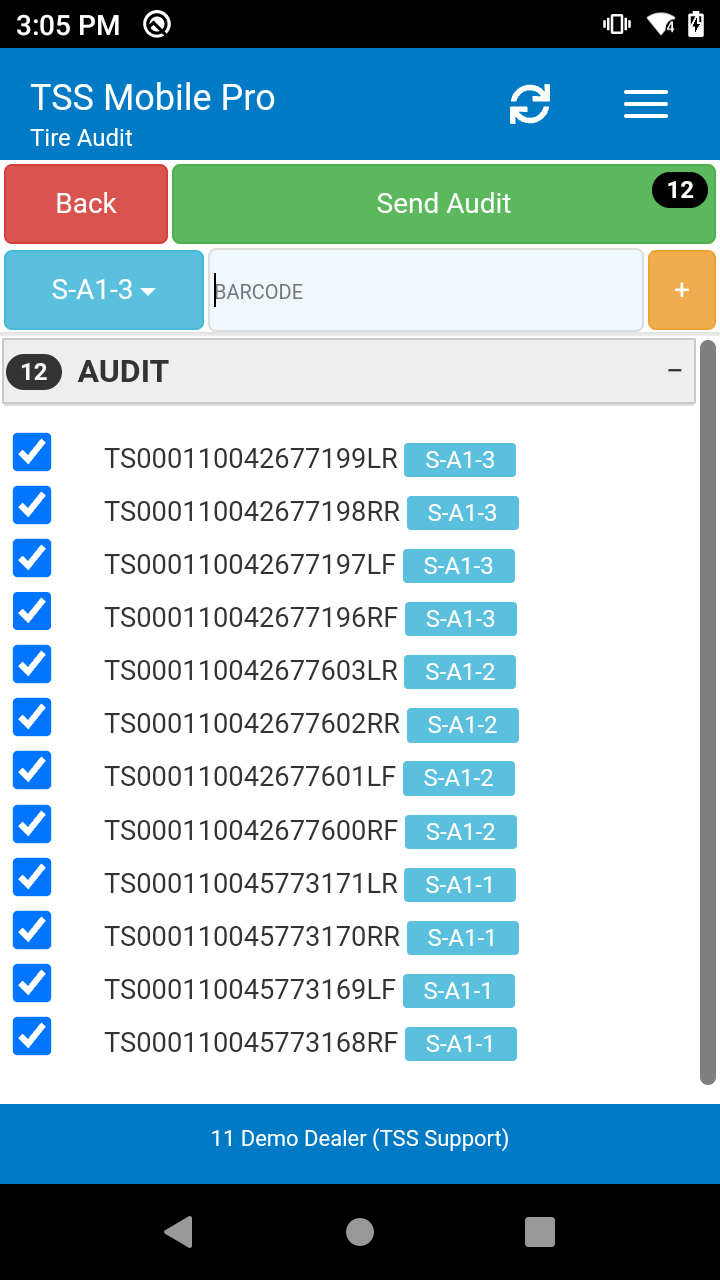 |
| 5. When complete, tap the Send Audit button (you can send audit scans at any time during the process). An alert will be displayed when audit scans have been successfully saved and sent to the web portal for processing. | 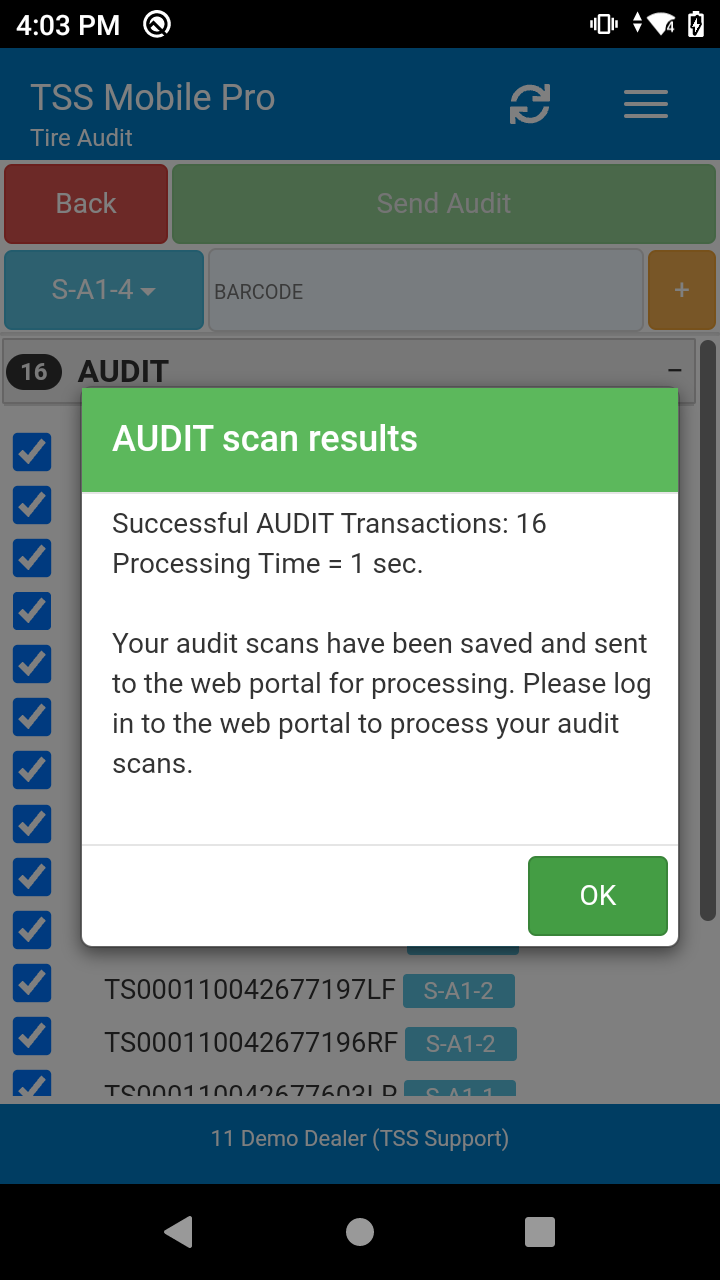 |
BEST PRACTICE: Prioritize accuracy before speed when scanning. Sometimes users forget to scan the next bin label when they move to the next bin and start scanning tires. Validate the correct bin location was scanned after each set.
If the incorrect bin location was scanned, uncheck the tires, scan the correct bin location, then re-scan the tires. Not fixing these scanning errors during the audit will result in duplicate scans.
Step 2: Resolve Duplicate Scans
Duplicate Scans records occur when the same tire barcode ID was scanned in two different bin locations. This can happen for one of two reasons:
Duplicate Set - There are two different sets using the same barcode labels.
User Error - The user scanning the tires made a mistake (see tip after Scan the Audit in TSS Mobile Pro Step 5).
2.1: How to Resolve Duplicate Records
1. In the web portal navigate to Tools → Tire Audit. Your sent audit scan records will be listed here.
2. If you have any duplicate scans you'll see a red triangle icon beside the Tire Audit tab.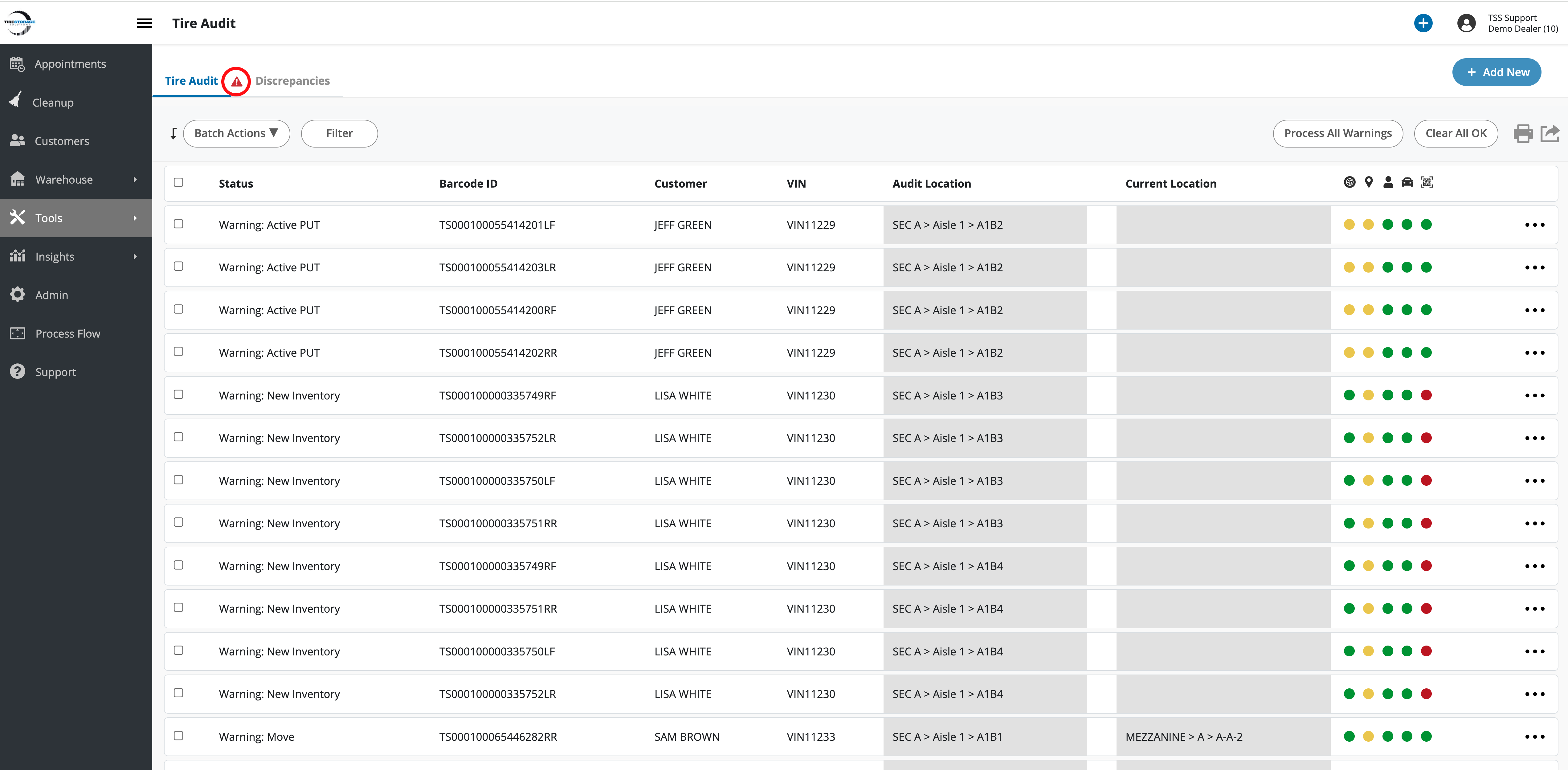
3. Click the red triangle to display your duplicate scan records.
4. Keep the scan record that has the correct Audit Location and remove the duplicate record via the ••• menu Delete option.
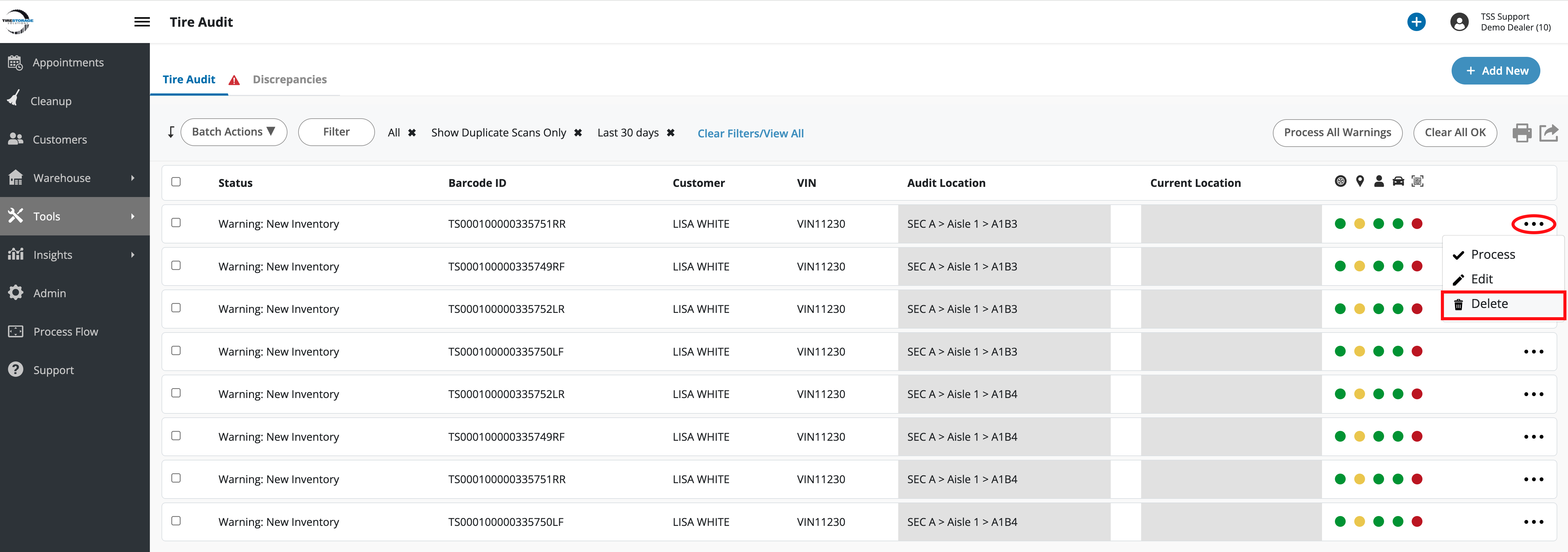
BEST PRACTICE: Export a copy of your duplicate scans for your records.
2.2: Duplicate Labels Found on Different Tire Sets
In some cases, duplicate scans reveal a more serious inventory issue - different tire sets may be using the same barcode labels.
This commonly occurs when labels are accidentally reused or when a second tire set was never properly added to the system.
In these situations, do not simply overwrite the location information.
- Keep the audit scan records from the first storage location, and delete the audit scan records from the second location.
- Add a new vehicle and/or tire set to the customer's profile
- Print the new labels and put them on the second set
- Audit the second tire set into the second storage location and send the audit scans again.
Step 3: Process the Audit Records
3.2: Understanding Tire Audit Statuses
Before processing audit records, it's important to understand the various tire audit statuses.
| Status | Meaning |
|---|---|
| OK | Tire is already in the correct location |
| Warning: New Inventory | Tire has no existing storage or appointment |
| Warning: MOVE | Tire was found in a different location than expected |
| Warning: Active PUT | Tire has no existing storage and is attached to a PUT order |
| Error: Active PICK | Tire has an existing storage location and is attached to a PICK order |
TIP: You can view records by status via the Filter button.
3.2 Process Warning Records
1. After resolving any duplicate scans click the Process All Warnings button.
- An alert will display when the audits have been added to queue.
- Warnings will process automatically and Errors will require review.
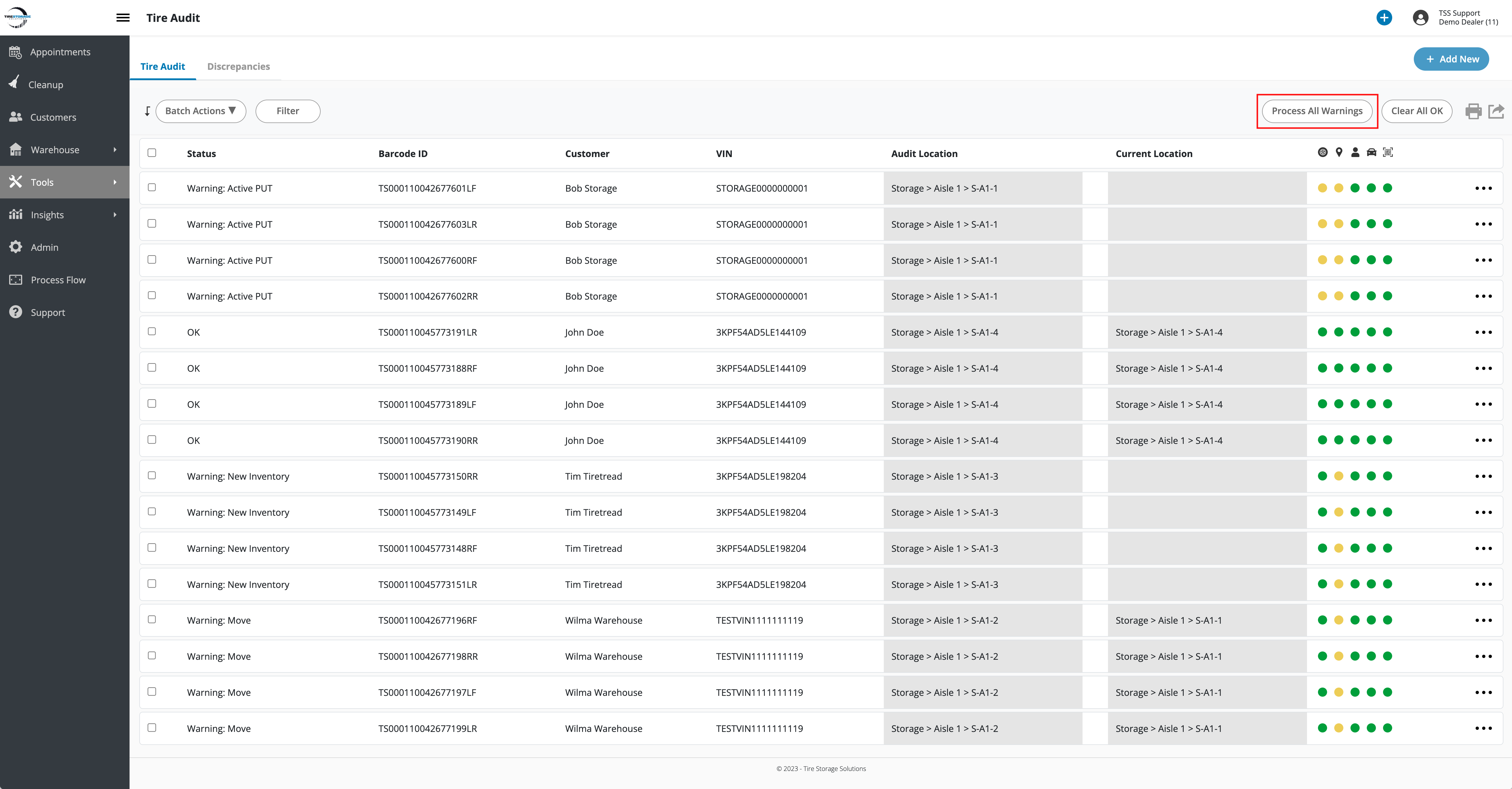
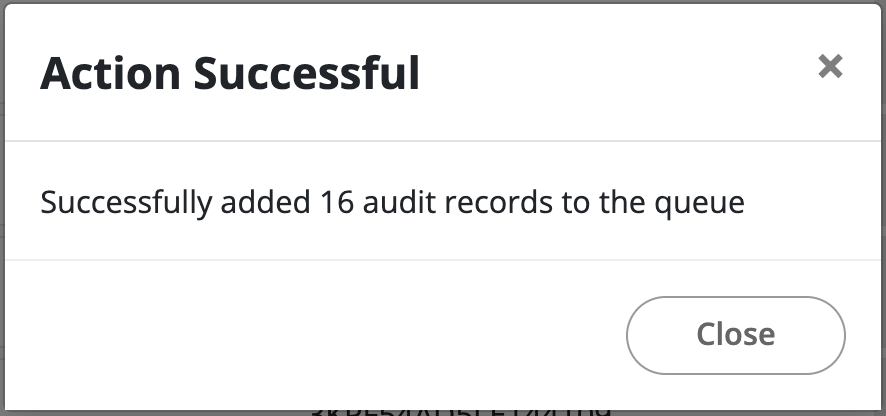
BEST PRACTICE: Export a copy of your audit before processing for your records.
3.2 Review Active Pick Errors
- Click the ••• menu for the record you want to review and click Process.
- A popup will appear confirming that you want to move the tire to the audit scanned location.
- Click the Move button to process the audit record.
- Refresh the mobile app to update PICK order locations.
Step 4: Resolving Discrepancies
Tire Audit Discrepancies are tires that are logged in a bin location in your TSS system, but were not scanned during your audit.
Please Note: Discrepancies should only be resolved during the off-season when tires are not actively being picked or put into storage and only if ALL tires have been scanned.
1. Once your audit records have completed processing and all records have an "OK" status, navigate to the Discrepancies tab.
2. Click the Filter button to update the status:
- Partial Audit (default) - only shows discrepancies in storage locations you've scanned.
- Full Audit - shows discrepancies in all storage locations wether they were scanned or not.
3. Click on a bin panel to expand it and view tires that are logged in that location but not scanned during your audit.
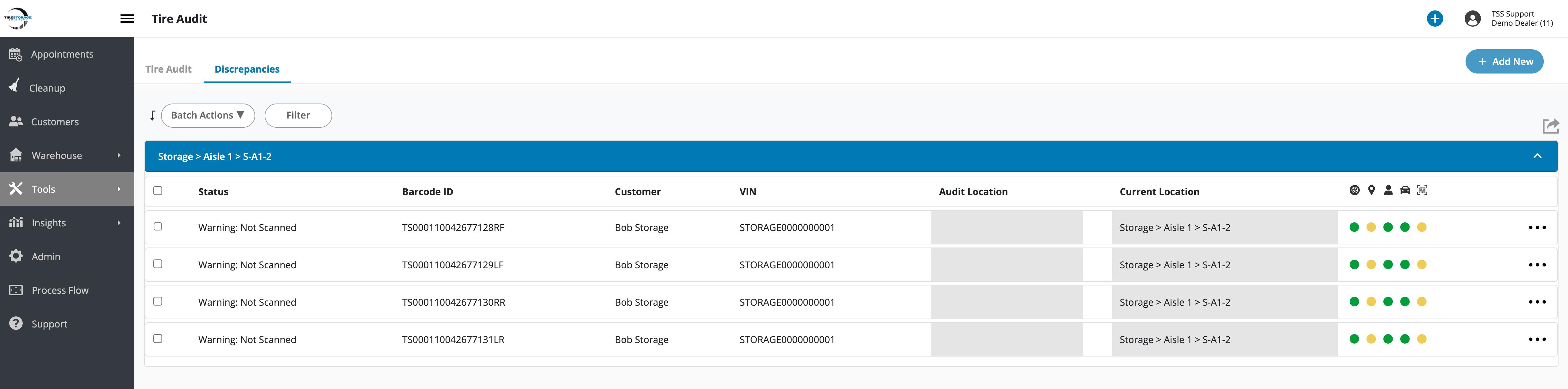
3. Select the tires in the bin you want to action and click the Batch Actions button.
4. You can either Move to Vehicle or Move to a New Location.
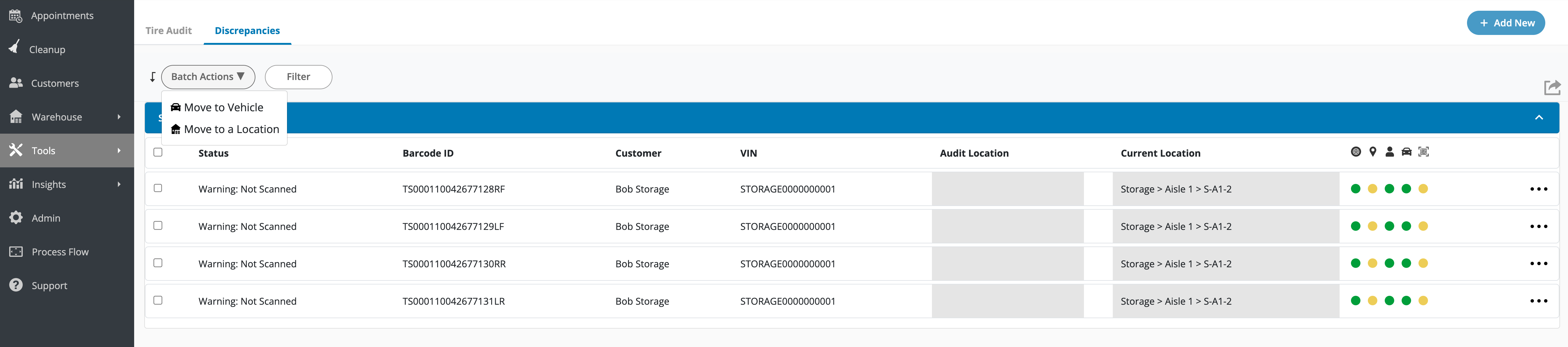
BEST PRACTICE: Export a copy of your discrepancies before before resolving them.
Step 5: Clearing the Audit
Once the audit has been processed and discrepancies have been resolved, click the Clear All OK button to clear your audit and any remaining discrepancy records.
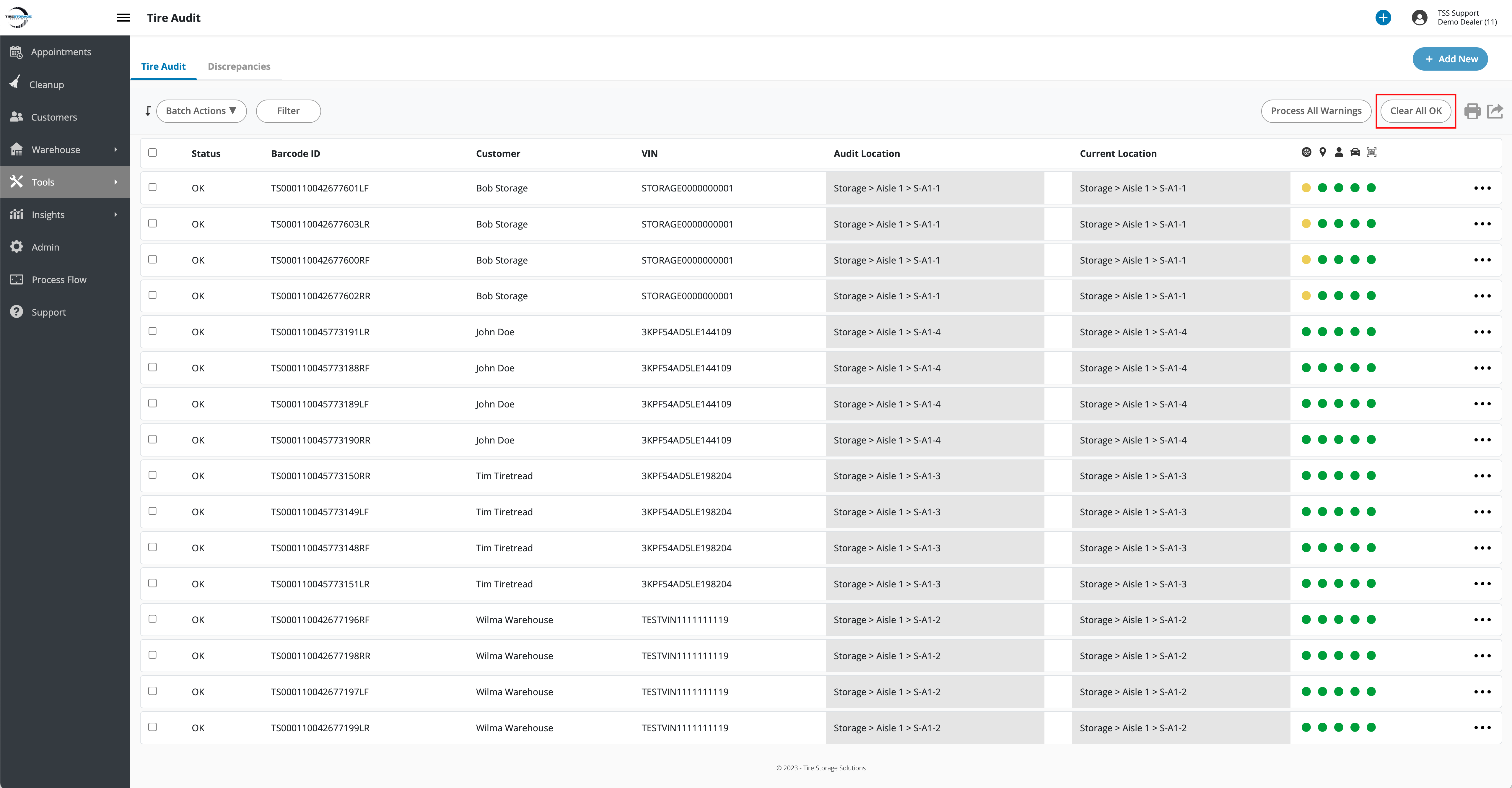
Post-Audit Cleanup (Recommended)
After the Tire Audit has been completed and cleared, we recommend reviewing the Incomplete Sets tool.
Incomplete Sets occur when only part of a tire set has been stored while other tires remain assigned to the vehicle.
This often happens when tire labels are missing, damaged, or not scanned during storage or audit activities.
Incomplete Sets can prevent PUT order completion and may also prevent future retrieval appointments from being created.
1. Resolve Incomplete Sets
An Incomplete Set occurs when only some tires in a set are stored while other tires remain assigned to the vehicle.
- Navigate to Tools → Incomplete Sets.
- Review partially stored tire sets.
- Resolve as needed via the record ••• menu:
- Move tires to [set bin location] - Select this option to store the tires with the rest of the set.
- Delete Tires on Vehicle - Select this option to delete the un-stored tires from the set and complete the attached order.
IMPORTANT:
Resolve Incomplete Sets and Multiple Bins after the Tire Audit has been completed and cleared.
Moving unscanned tires into storage locations during an active audit can create additional discrepancy records because those tires were not physically scanned during the audit process.
2. Review and Resolve Multiple Bins
The Multiple Bins tab displays tire sets that are stored across more than one storage location.
In some cases, this may indicate a tire movement issue.
However, multiple bin locations can also be completely legitimate when all tires in a set do not fit into a single storage location.
Unlike Incomplete Sets, Multiple Bin records do not prevent appointment creation.
Users may choose to consolidate tire locations if desired using the available actions menu options.
- Navigate to Tools → Incomplete Sets → Multiple Bins
- Review tire sets stored in multiple bins.
- Resolve as needed via the record ••• menu.
TIP: The easiest way to avoid Incomplete Sets and unintentional Multiple Bins is to enable Show Tire Set before beginning your audit and ensure all tires in each set are scanned before moving to the next location.
3. Run Appointment Cleanup
After the Tire Audit has been completed and cleared, we recommend running the Appointment Cleanup process.
Processing Active PUT audit records may complete open PUT orders and, for dealerships using AutoPicker, may also trigger automated order processing.
Running Appointment Cleanup after the audit helps identify and close completed appointments, reducing locked tire sets and improving inventory accuracy.